

Conversations
Different channels feed one inbox
Connect messengers, email, marketplaces and your website widget. Requests enter a shared workflow, and replies return to the customer’s channel.
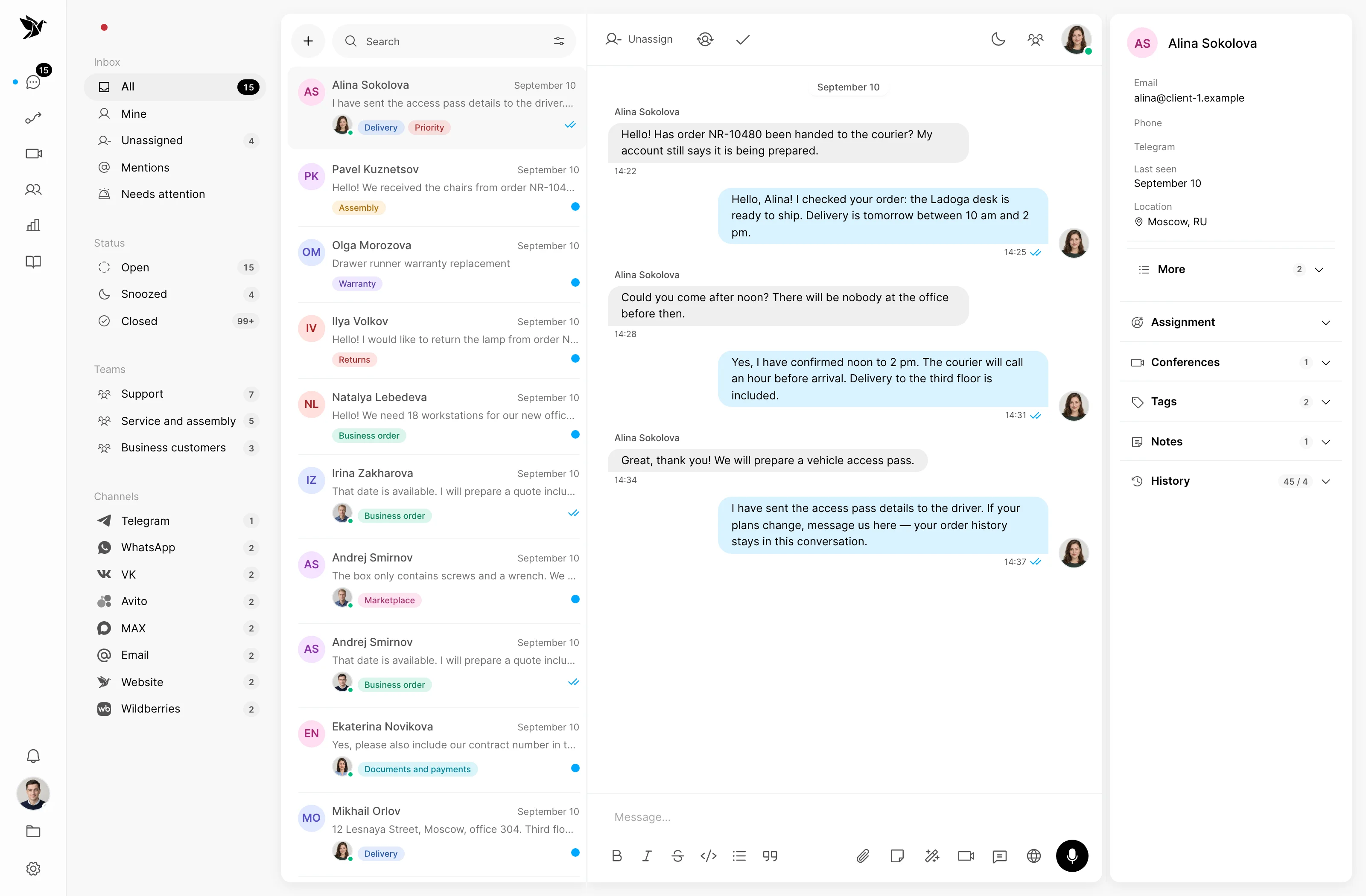
Different channels feed one inbox
Continue in the customer’s chosen channel
See where the workload comes from
Conversations
Messengers, email, marketplaces and website chat become part of a shared workflow. Your team sees incoming conversations in Tygy and replies from the conversation.
Customer replies
Customers contact you through a familiar channel while agents work in Tygy. Replies return to the original channel within the connected service’s capabilities.
Channel analytics
Channel reporting helps you compare incoming conversation volume. Use it to plan your team’s work and review changes over a selected period.
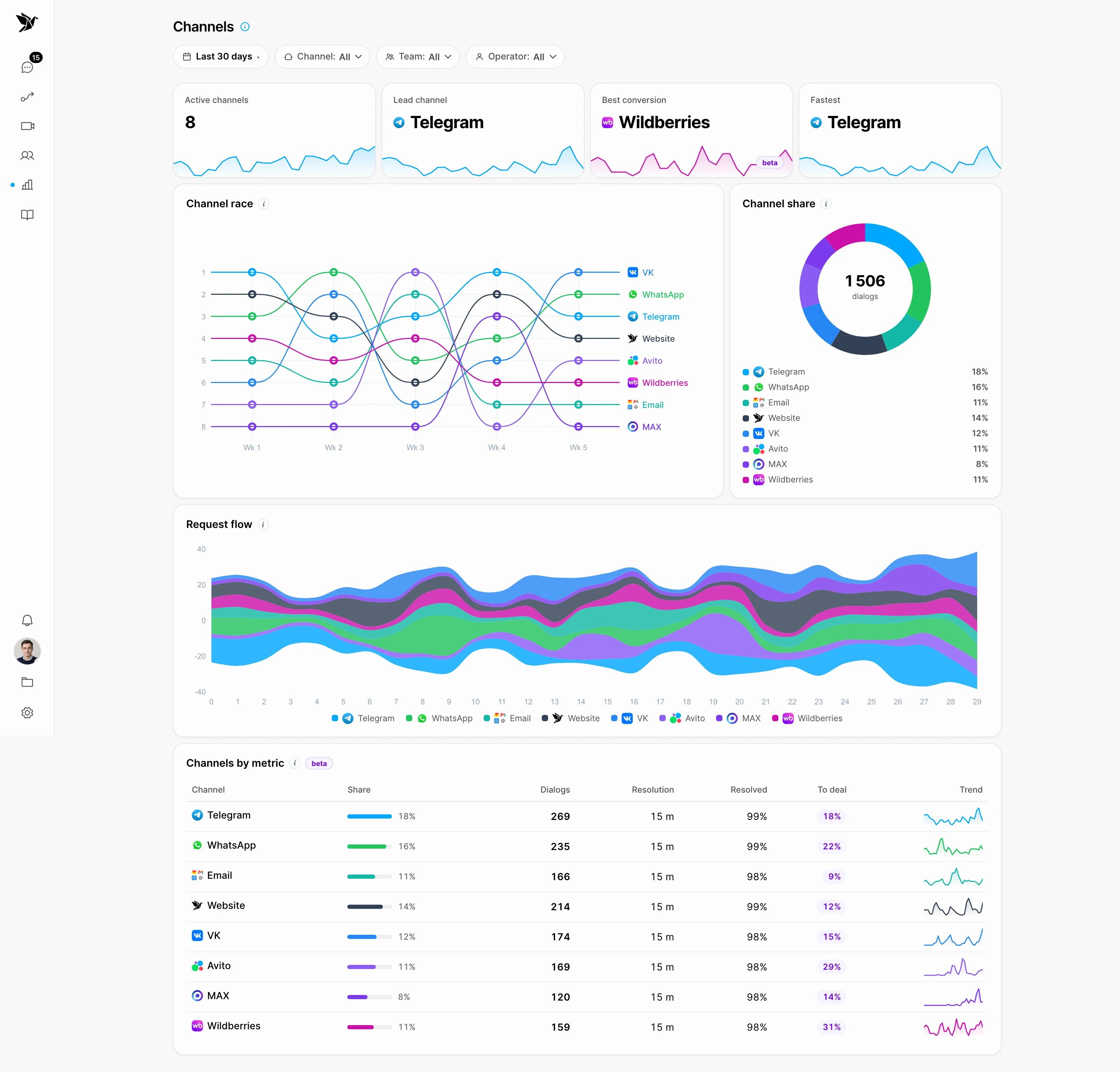
Screenshots show the Tygy interface with demonstration data. Names, conversations and figures are examples.
How it works
Start with your main conversation source and test messages in both directions.
Define the task and the people involved.
Choose settings for your team’s workflow.
Walk through a test example.
Review the result and refine the settings.
Check the selected workflow using your team’s examples before putting it to work.
Everyday tools
Handle messages in the shared inbox.
Check the conversation’s channel before replying.
Compare conversations across channels.
Channels
Tygy supports messengers, marketplaces, email and website chat. Check the available connection method for your chosen service in settings.
Back to the channel the conversation came from, within that channel’s capabilities and limits.
No. Message formats, sending rules and connection requirements depend on the service.
Start with your main conversation source and test messages in both directions.
14 days free · No credit card required