

Trigger conditions
Define when action is needed
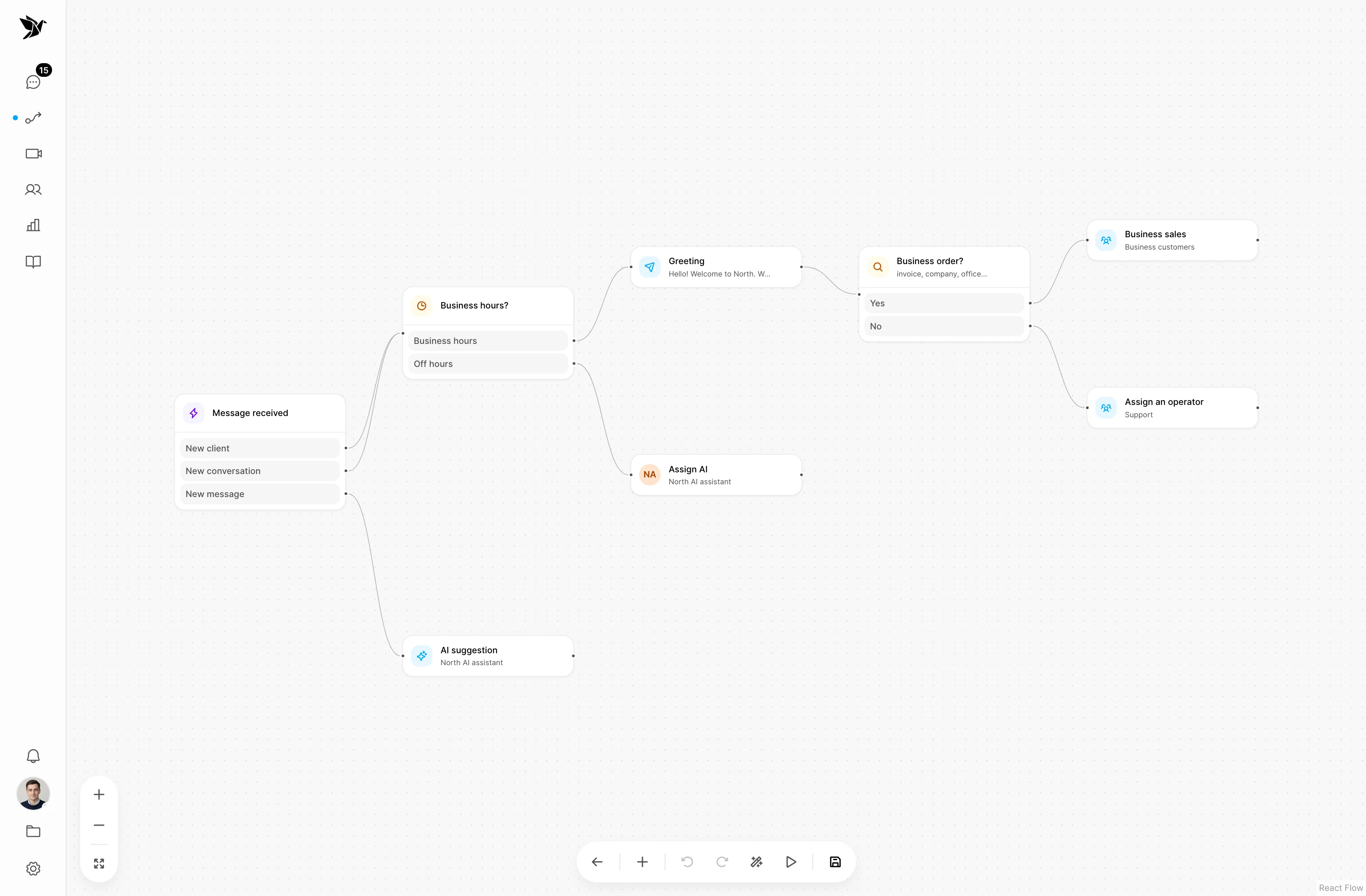
Decide what happens to a request: who receives it, when to send an automatic reply and which actions to take. Build scenarios in the visual editor.
Define when action is needed
Route conversations by your rules
Prepare replies for recurring situations
Trigger conditions
A scenario connects an event, conditions and actions. The visual editor lets you build conversation rules around your team’s processes.
Routing
Set up actions that help send a conversation to the right assignee. Check the conditions against how your team distributes work.
Automatic actions
Use an automatic reply where the wording and conditions are known in advance. Agents continue the conversation in the shared inbox when a person needs to help.
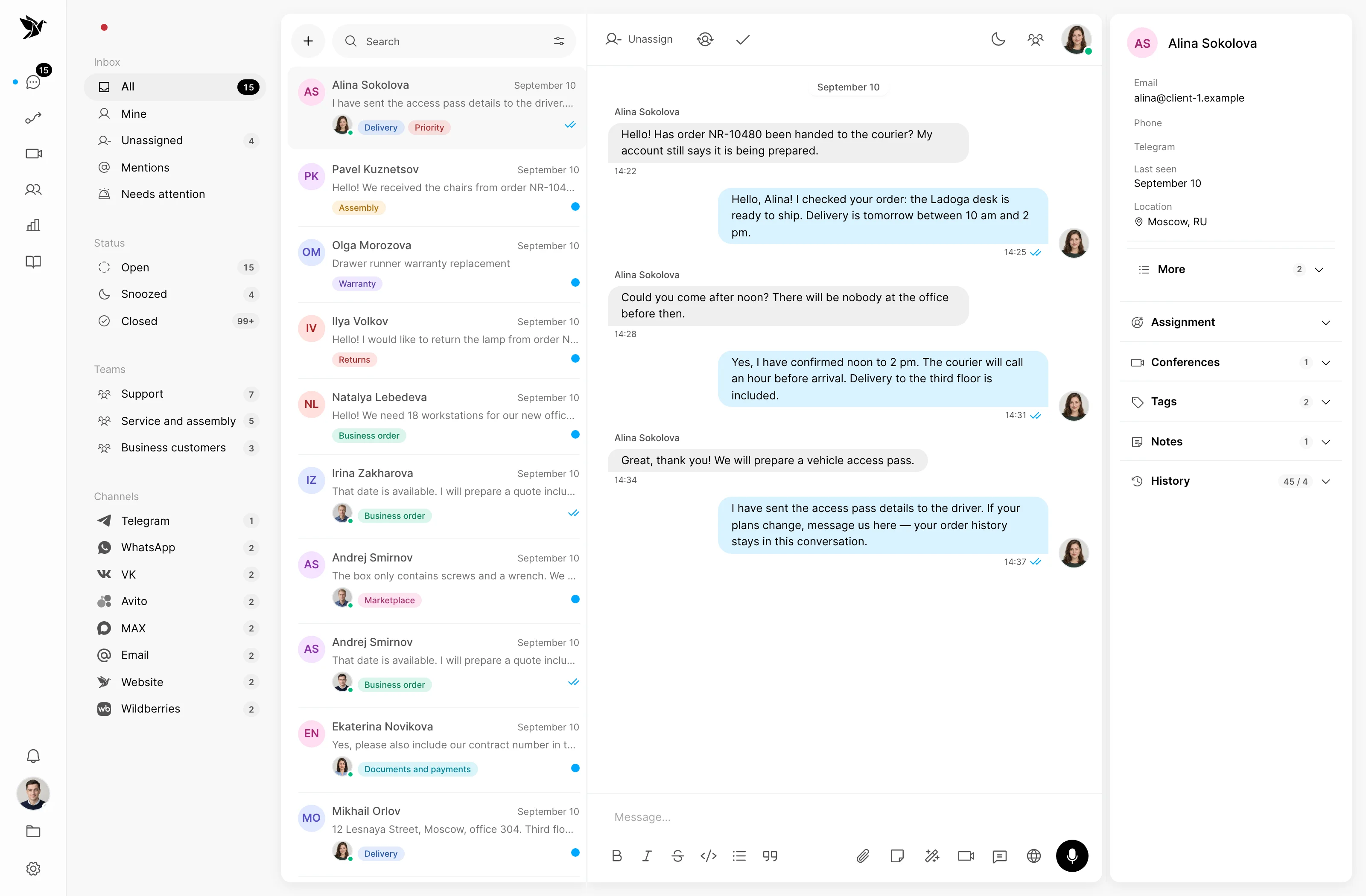
Screenshots show the Tygy interface with demonstration data. Names, conversations and figures are examples.
How it works
Check conditions and actions before enabling the scenario.
Define the task and the people involved.
Choose settings for your team’s workflow.
Walk through a test example.
Review the result and refine the settings.
Check the selected workflow using your team’s examples before putting it to work.
Everyday tools
Choose a trigger event.
Define who receives a matching conversation.
Configure a greeting or an out-of-hours reply.
Scenarios
Scenarios are built in a visual editor using events, conditions and available actions.
A scenario follows configured rules. An AI agent prepares replies using context and knowledge. Both can be part of the same workflow.
Start with one recurring action, such as a greeting or routing. Test matching and non-matching conversations before enabling it.
Check conditions and actions before enabling the scenario.
14 days free · No credit card required